I think Google’s connected apps could change quite a bit about how people reach products and services. They give SaaS companies and other digital products one more way to meet existing users and potential customers, and to offer part of the product from inside AI Mode in Search.
A connected app lets Google use actions another service offers, subject to permissions and availability. Instead of only sending the user to that service’s site, Google can ask the service to do part of the task and show the result.
To see why this is interesting, I imagine an insurance company connecting its quote calculator to Google. Someone looking for car insurance could give their car details in AI Mode and get a quote without visiting the insurer’s site. That example is my own and hypothetical.
It is still limited today. In Search, connected apps work only in AI Mode, in the US and in English. Canva is one of the services Google shows, and you can ask it for a flyer draft.
For SEO and GEO people, this is one more place where customers can find a service and use it, sometimes without passing through the product’s site. So it is worth understanding where the customer meets the service and where they go to finish the task.
If you have a product or service, this guide explains how to prepare it for a connection and how to test its actions.
What is available now in Search and Gemini
As of November 2026, connected apps in Search are available in AI Mode in the US, in English. If you work from anywhere else, you may not be able to test in Search at all. Google: Connected apps in Google Search
In Gemini, availability changes by app, country, language and device. Google’s list of Gemini apps shows how much this varies: Google: Connected apps and their availability in Gemini
- Instacart and Zocdoc are limited to the US.
- Canva and Wix are listed for all countries where Gemini and the app are supported, but only in English, French, Hindi, Indonesian and Portuguese.
Developers have separate access conditions, and this is the biggest limit right now. The platform is in public preview, and the form to join is a waitlist. If you don’t have access yet, you can still prepare your service and check it against the requirements.
How to use a connected app in Search
To use a service without registering it as a developer, you currently need an account that can use connected apps in AI Mode, in the US and in English. You may also need an account with the service, linked to your Google Account.
- Open AI Mode. Sign in to Google Search with your Google Account and choose AI Mode.
- Ask for an action. Name an app, or describe what you need and pick a service from the list of available options, if one is shown.
- Link an account if needed. If the service needs a linked account and you haven’t linked one, Google may offer to do it. Check what access is being requested before you approve.
- Finish the task. Part of the result can appear in Search. Sometimes you continue in the service itself, for example to pay.
You can also use connected apps in Gemini. Before testing there, check the country, language and device for the app in Google’s list.
What this could change for the product’s site
When someone finds a service and starts using it inside Google, part of their journey may happen away from the product’s site. That isn’t necessarily bad. But you should know who presents the service, where the action happens and what information reaches you afterward.
With Instacart, an American grocery delivery service, the cart is built in Search and checkout happens in Instacart.
Shopping in AI Mode also has a route separate from connected apps, where eligible US merchants let people pay inside Google. Not every request or purchase ends in the same place. Google: Shopping and checkout in AI Mode in Google Search
To me, both routes show where Google is heading: it lets people complete more of the steps toward their goal inside its own products. Either way, this is one more route that bypasses the site.
For developers: can you use an MCP server you already have?
The Connected Apps Platform lets developers connect their product, or specific actions from it, to Google. After connecting, you can submit the service for review and choose where to offer it, depending on the route and what Google supports. Google: Google's Connected Apps Platform announcement
A remote MCP server you already run can be a starting point. The server lets an AI system request actions your service offers, like producing an insurance quote.
A server that works with another agent won’t necessarily work with Google unchanged. For a remote server, Google requires:
- a public HTTPS address, so Google can reach the server
- Streamable HTTP, the transport Google requires on this route
- a supported protocol version, so an older server may need an update
You also need to make sure Google can reach the server, and check which type of authorization suits your service.
Connecting through an MCP server is different from WebMCP, where a site offers tools through the browser. I cover that route in the WebMCP guide.
There is also an Android MCP route for actions inside an app on an Android device. It is meant for Gemini experiences on Android, so don’t assume it connects the same action to Search.
Getting access: what the waitlist form asks
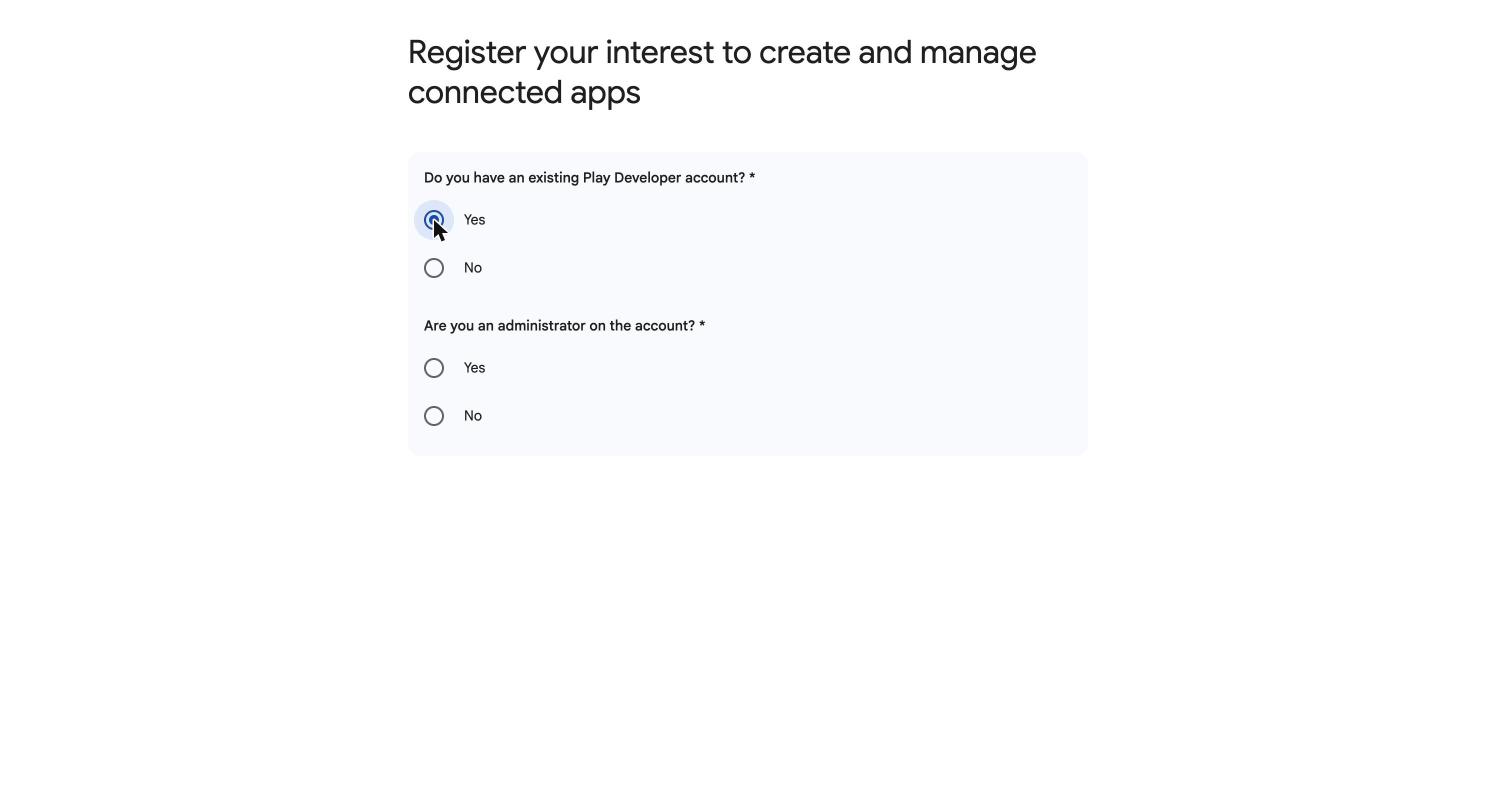
The way in is the form to register your interest. I went through it with my own Google account, without submitting it. It first asks whether you have a Play Developer account. google.com: Register your interest in the Connected Apps Platform
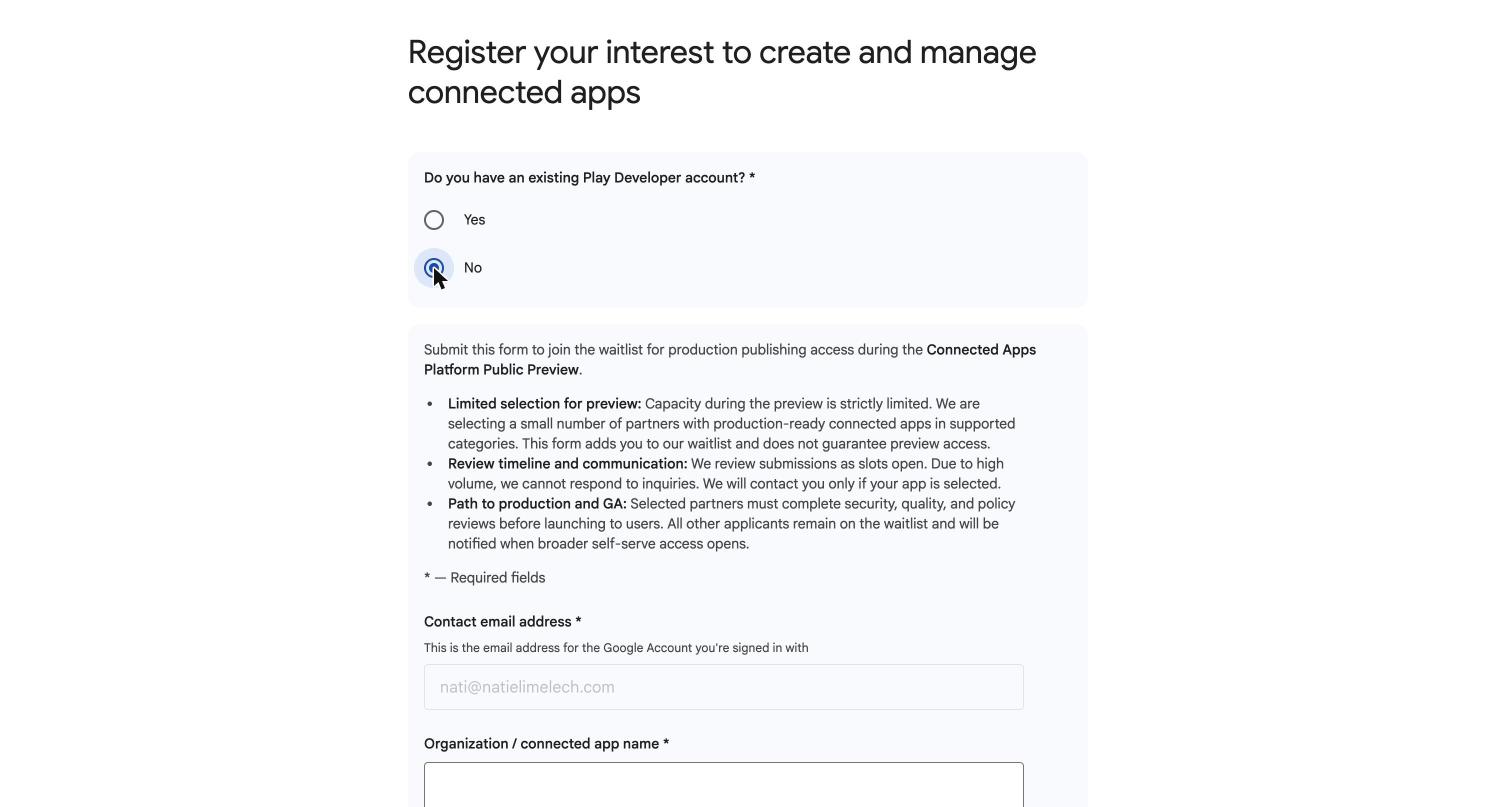
Answering no opens the full form. Its intro is the most useful thing to read here. Google says capacity is strictly limited, it is selecting a small number of partners with production-ready apps in supported categories, and it will contact you only if your app is selected. Selected partners still go through security, quality and policy reviews before launch.
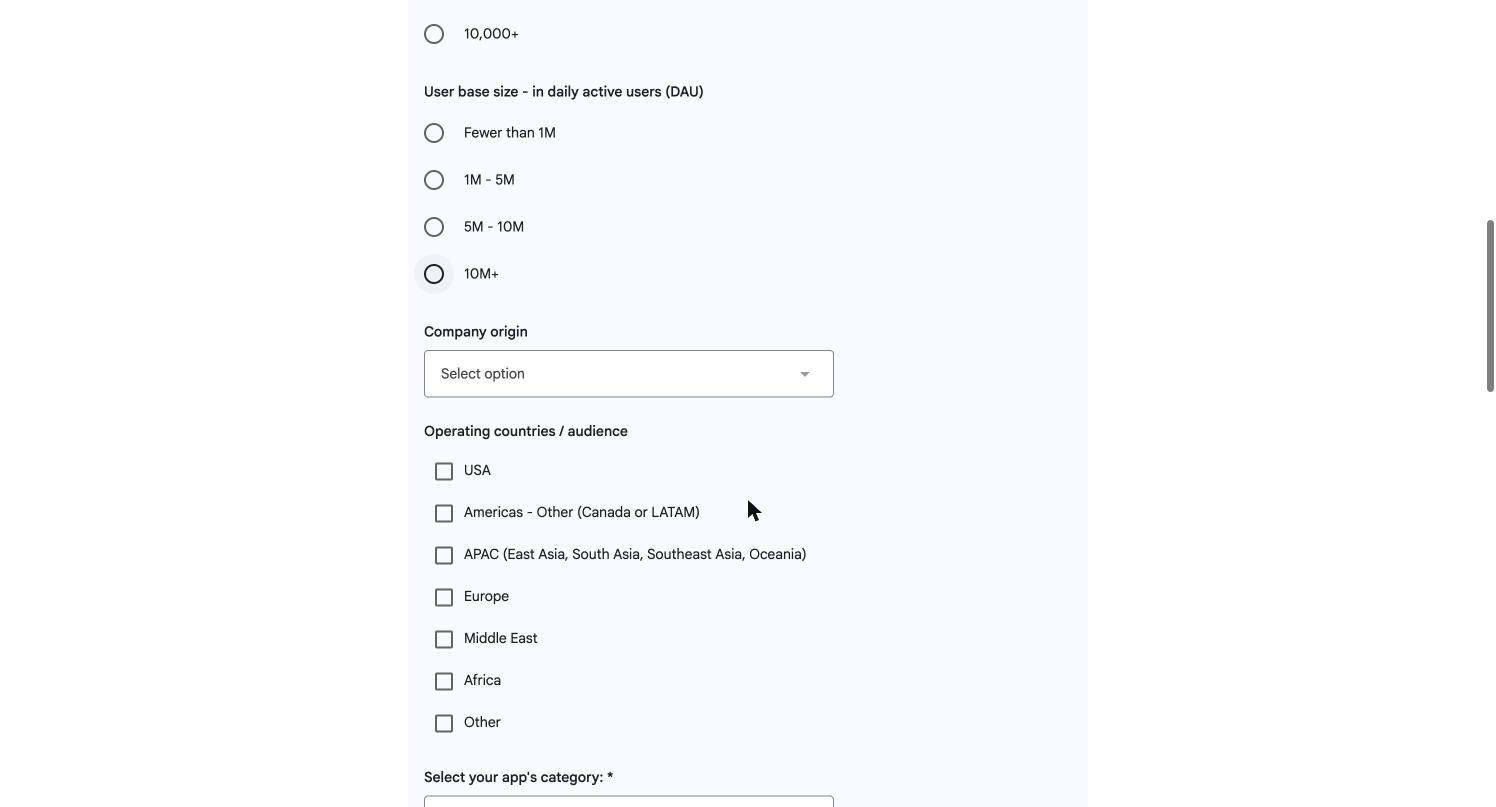
So have these answers ready before you open it:
- organization or app name, company size and daily active users
- company origin, operating regions and app category
- the capabilities and user journeys you are enabling
- integration path (Server-Side MCP or Android MCP) and target product (Search or Gemini)
- your MCP server’s endpoint URL, or N/A if it isn’t ready, and whether it is public or private
- your approach to UI (MCP only, or MCP App with iframes)
- target availability, and whether you already have a live MCP on other LLM platforms
- security and privacy details, such as read and write scopes, OAuth 2.1 and a published privacy policy
Until you have access, the console is closed. When I opened Connected Console on my account, which has no access, it returned a 404 page.
How to prepare a service for Connected Console
I could not get past the waitlist, so this section comes from Google’s documentation and not from my own run through the console.
Connected Console is where developers register a connected app and submit it for review. Before registering, you need:
- a developer account with permission to create and manage connected apps
- an action your service can already perform, because the connection exposes an existing capability
- a server suited to the route you chose, because remote and Android requirements differ
If your organization hasn’t accepted the terms of service, an account owner or admin has to review them first.
These steps cover a remote MCP server. The Android route has different setup steps.
- Prepare the server and connection. With your developers, check the address, protocol and access permissions against Google’s prerequisites. If the server restricts by IP address, also check which requests Google can send it.
- Create the app and choose a route. Once you have access, create an app in Connected Console and choose a category and connection type. You can’t change the category later on that app.
- Verify the MCP server’s domain. If the domain is already verified on the account, it may show as verified. Otherwise, enter the server’s full HTTPS address and download the verification file. Whoever runs the server has to serve its contents at
https://<your-domain>/.well-known/google-connected-apps. The address must be public and return200with no redirect. Then go back to the console and verify the domain. - Set up authorization. After verification, choose the access method that fits your server.
- Prepare the app details. Google asks for a name, a description under 30 words, a 512 by 512 pixel icon, at least three capabilities, at least three example prompts, and links to your terms of service and privacy policy.
- Test and submit. Follow the registration and testing instructions, then submit for review.
What to write in the app description and tool instructions
Registering isn’t the end of the work. If someone looks for a service by name, they have to recognize it and understand what it offers. If they describe a need without naming a brand, the system has to understand which actions your service can perform.
The public name and description are shown to users, so explain simply what the service does, like quoting car insurance. The public description isn’t used as instructions for the model.
An MCP server also has instructions and descriptions meant for the system. A quote tool should say what insurance it prices and what it takes, like vehicle year and driver age. A tool for buying the policy should describe that action separately, if the service really offers it.
With your developers, check that the descriptions match the real actions, including limits and required details. Google’s integration requirements spell out what each description is for, along with the security rules. Don’t write instructions that try to make the model prefer your service over others, because Google’s rules prohibit it. Google: MCP server requirements for connected apps
A clear description still doesn’t guarantee the app appears for every request, and you can’t work out from it alone how Google ranks apps.
At registration, Google keeps a snapshot of your MCP schema, including tools, parameters and server instructions. An incompatible change to tools or parameters can break the connection, so coordinate changes with your developers and check how to update a version safely.
How to test the tools before submitting
Gemini Apps Developer Mode is a test environment for an MCP server inside Gemini. It lets developers see which tools are available, spot call errors and check authorization. A test there doesn’t prove the app is available in Search or visible to every user.
If the app is already registered on your developer account, it is available when you turn on Developer Mode. These steps cover the other option: testing a public HTTPS server as a custom app before registering. They come from Google’s testing instructions, and I haven’t run them on a real server. Google: Testing an MCP server in Gemini Apps Developer Mode
- Open the developer environment. Go to Gemini on the web and choose Gemini Apps Developer Mode from Settings, or use the link in Google’s instructions.
- Enter the server address. In the app picker, choose
+ Create newand enter the public HTTPS address inMCP Server URL. If pre-registered OAuth details are needed, enter them underAdditional settingsand chooseNext. - Check the connection permissions. Read the privacy and security window and make sure you trust the server. If you agree, acknowledge the risks and choose
Connect. - Save the test app. Name the app and check that the tools appear under
Available actions. ChooseConnectagain and open theTool schemastab to check the tool definitions. - Ask for an action and see what happened. Ask for a task the service can do and check the
Event Logfor which call was made and what came back. Also try a request that doesn’t suit the service, and check whether the system avoided an unsuitable call.
Once the account can use AI Mode and the app is available there, you can test the action separately in Search.
How to check whether customers can find the app
Once the app is available for testing in the right product and account, prepare a few requests around one real task. For example, if InsureApp is an available insurance quote app, you could test “Get a car insurance quote from InsureApp” and “How much would car insurance cost for a 2022 Toyota Corolla?”. InsureApp is a made-up name, so swap in your app and an action it really offers.
- Test by name. Write the service’s name in the request, or tag it with
@if that option is available. Note whether it appeared and whether you could continue with it. - Test by need. Describe the insurance you want without naming the service. Note which options appeared and whether yours was among them.
- Test the action. If the service appeared and connected, ask for an action it really offers. Note separately whether the app was suggested, whether tool output appeared and whether the action finished.
- Record the conditions. Note the date, Google product, account, country, language and exact request. After a change, repeat the same requests and compare.
If the app didn’t appear in one try, that doesn’t tell you why. Check account availability, publishing status, permissions and action descriptions first. A different result after a change doesn’t prove the change caused it either.
What to check after the connection goes live
A connection that works today has to keep working after changes to the server or the service. Keep your test requests and rerun them after a version change or a change to tool descriptions.
Connected Console shows data on traffic, response times and errors. That isn’t necessarily data on completed actions or on where each user came from, so check that separately in your own product systems.
A business on a third-party platform only needs to check that the platform connects
A business that takes bookings through a third-party platform, like a clinic using another vendor’s scheduling system, doesn’t need its own connection. It only needs to check, once this is relevant to it, that the platform supports one and includes the business.
There is already an example in Gemini. Zocdoc tells practices that providers listed with it can become bookable through its connection when they have open appointments, with no extra integration. Zocdoc charges its standard booking fee for those bookings, because its fees depend on how the patient found the provider. zocdoc.com: How Zocdoc practices become bookable through Gemini
Agentic use will reduce the need to visit the site
In the end, this is one more example of how agentic use, meaning use through agents, will replace the need to visit a site in many cases, or at least reduce it significantly.
Connected apps are only one route in this direction. With WebMCP, an agent uses tools a site offers through the browser, and in ChatGPT you can also use services’ apps from inside the conversation. In all of these routes the user asks for a result, and the agent performs the steps that used to take them from page to page.
I assume people will keep visiting sites when they want to compare in depth, read terms or get to know a brand before a big decision. I think simple, repetitive tasks, like checking a price or filling in a form, will move to agents first.
So I would check now which actions in your product an agent could perform for the user. I would also check what the site needs to give people who still arrive, when some of the simple tasks already happen elsewhere.
Good luck.